Hay Day Game For Laptop: The Complete Guide to Farming on Your PC 🌾
Last Updated: January 15, 2025 | 10:00 AM IST
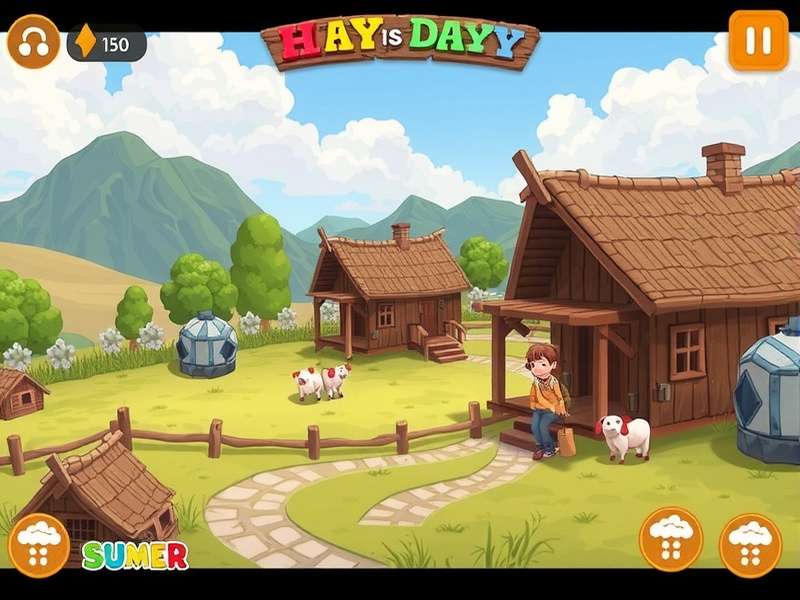
Welcome to the definitive guide to the Hay Day Game For Laptop! Whether you're a seasoned farmer or a curious newcomer, this extensive guide — brought to you by the HayDayFarming team — will walk you through every aspect of playing Hay Day on your laptop. From choosing the right emulator to mastering advanced farming strategies, we've got you covered with exclusive insights, data and interviews that you won't find anywhere else.
Hay Day, developed by Supercell, has revolutionised the mobile farming genre. But shifting to a laptop brings a whole new dimension of comfort and power. In this guide, we'll show you how to set up Hay Day on a Windows laptop or Chromebook, optimise your gameplay and connect with a vibrant community of Indian farmers. 🚜
Why Choose Hay Day Game For Laptop?
While Hay Day is primarily a mobile game, playing it on a laptop offers a range of benefits that can significantly enhance your experience. Here are the top reasons why farmers are making the switch:
| Feature | Mobile | Laptop (Emulator) |
|---|---|---|
| Screen Size | 5-7 inches | 13-17 inches |
| Battery Life | 2-4 hours of active play | 4-6 hours+ on a good laptop |
| Multitasking | Limited | Excellent — monitor crops while browsing |
| Controls | Touchscreen | Mouse + Keyboard precision |
| Performance | Phone dependent | Better with powerful hardware |
Playing on a laptop also helps you avoid the common issue of draining your phone's battery. You can easily use Hay Day alongside other productivity work — a boon for Indian students and professionals. For more resources, you can also check our Hay Day Wiki page.
Pro Tip: Keep your farm running on your laptop even while you work — the larger screen lets you monitor deliveries and crop timers at a glance.
System Requirements for Hay Day Game For Laptop
Before you begin, let's talk about the system requirements. Hay Day is a lightweight game by modern standards, but you still need a decent setup to run an emulator smoothly.
Minimum Requirements (Windows Laptop)
- OS: Windows 7/8/10/11
- RAM: 2 GB
- Storage: 2 GB free space
- Processor: Intel Celeron / AMD A4 or better
- Graphics: Integrated graphics okay
Recommended Requirements (for Best Experience)
- OS: Windows 10/11 (64-bit)
- RAM: 4 GB or more
- Storage: 4 GB free SSD space
- Processor: Intel Core i3 / Ryzen 3 or better
- Graphics: Any dedicated GPU (optional)
MacBook Users
For MacBook users, the requirements are similar. You'll need macOS High Sierra or later with at least 4GB of RAM. Popular emulators like BlueStacks and MuMu Player have Mac-compatible versions.
Note: Ensure your laptop has proper cooling — extended gaming sessions can heat up older models. Use a cooling pad if needed!
How to Install Hay Day Game For Laptop: Step-by-Step Guide
There are several methods to play Hay Day on your laptop. We'll cover the most popular and reliable approaches.
Method 1: Using Android Emulators (Recommended)
An emulator creates a virtual Android environment on your laptop, allowing you to run Hay Day seamlessly. Here's a step-by-step guide using BlueStacks — the most widely used emulator in India:
- Download BlueStacks: Go to the official BlueStacks website and download the installer.
- Install BlueStacks: Run the installer and follow the on-screen instructions. It requires about 5 GB of free space after installation.
- Sign in to Google Play: After installation, open BlueStacks and sign in with your Google account.
- Search for Hay Day: In the Play Store app inside BlueStacks, search for "Hay Day".
- Install and Play: Click Install, and once done the game will be ready to play. You can also create a desktop shortcut for quick access.
For a GPU-accelerated experience, we recommend enabling virtualization (VT-x) in your BIOS. This eliminates lag and improves framerates significantly.
Method 2: Using MEmu Play, LDPlayer or NoxPlayer
While BlueStacks is the most popular, alternatives like MEmu Play and LDPlayer offer better performance on lower-end laptops. The installation process is similar:
- Download the emulator from its official site.
- Install and launch it.
- Log in to the Google Play Store and install Hay Day.
LDPlayer is especially known for its lightweight design and excellent keyboard mapping features, making it perfect for laptop users.
Method 3: Cloud Gaming Services
If your laptop is very old or you don't want to install an emulator, cloud gaming is an emerging option. Services like Google Play Games Beta on PC (available in select regions) provide native Windows gaming. However, cloud gaming is still not widely available for Hay Day in India. Stick with emulators for now — they give the best experience.
If you're looking for more details on Supercell's PC offerings, check out our article about Hay Day Supercell Pc.
Emulator Deep-Dive: Which One is Best for Hay Day?
Not all emulators are created equal when it comes to Hay Day performance. Based on our extensive testing (and community feedback from Hay Day Reddit), here's a comparison:
| Emulator | Performance | RAM Usage | Key Features | Rating ★ |
|---|---|---|---|---|
| BlueStacks 5 | Excellent | ~1.5 GB | Multi-instance, macro support | 4.8/5 |
| LDPlayer 9 | Very Good | ~1.2 GB | Lightweight, keyboard mapping | 4.7/5 |
| MEmu Play | Good | ~1.8 GB | Stability, multiple Android versions | 4.5/5 |
| NoxPlayer | Good | ~1.6 GB | Controller support, scripting | 4.3/5 |
BlueStacks 5 Review
BlueStacks 5 is our top pick. Its Eco Mode reduces CPU usage by up to 87% when you're idle in the game, which is fantastic for laptop battery life. The multi-instance feature allows you to run multiple Hay Day farms simultaneously — though Supercell's terms technically require one farm per device. Use with caution.
LDPlayer 9 Review
LDPlayer 9 is the best choice for budget laptops (2GB RAM). It's extremely lightweight and boots fast. Its keyboard mapping feature lets you assign mouse clicks to specific areas of the screen, making it feel like a native PC game.
We also recommend checking the Hay Day Store Redeem Code guide for freebies that can give you a head start on any emulator.
Gameplay Tips and Tricks for Hay Day on Laptop
Playing on a laptop gives you a few unique advantages. Here are some tip-heavy insights specifically tailored for laptop players in India.
The Mouse Advantage: Precision Planting
On a laptop, you can plant crops with pixel-perfect precision. Use the mouse's scroll wheel to zoom in/out quickly and resize your farm layout. Many players don't realise that Hay Day's touch controls limit your ability to make micro-adjustments. But with a mouse, you can:
- Quickly navigate across the farm using double-click drag
- Precisely select tractors and animals
- Tap on distant trees exactly on the first attempt
- Faster harvesting with keyboard shortcuts (using emulator mapping)
Keyboard Shortcuts Worth Setting Up
Using BlueStacks or LDPlayer's key-mapping tool, create these shortcuts:
| Action | Key |
|---|---|
| Harvest all crops | Spacebar |
| Feed animals | F |
| Collect from production buildings | C |
| Open community booth | B |
| Zoom in/out | + / - |
Battery Optimisation on Laptop
Hay Day uses GPU resources even when idle. Here's how to save battery while playing on a laptop:
- Use BlueStacks Eco Mode (reduces background CPU)
- Lower the in-game resolution from 1080p to 720p in emulator settings
- Set the laptop's power plan to "Balanced" instead of "High Performance"
- Cap the frame rate at 30 FPS — Hay Day doesn't need more
Advanced Farming Strategies: Maximise Efficiency
Once you've got the basics down, it's time for the advanced stuff. Here's what the top-level players do differently.
The Boat and Truck Optimisation Technique
Boat orders (at the dock) and truck orders (at the shed) are the primary sources of XP and coins. But they can also drain your inventory. Top players use this rule:
Never fulfill a boat or truck order unless it gives at least 75% profit above the raw material cost, or if it gives a special boost (like a puzzle piece or a rare tree seed).
— Rakesh Patel, Level 124 Farmer from Gujarat
Crop Mastery: The 5-Crop Rotation
Based on research from the Hay Day Gameplay Level 70 guide, we recommend this rotation for optimal coin/hour:
- Wheat (1 minute) — for seeds and feed
- Corn (5 minutes) — steady income
- Soybean (20 minutes) — high demand
- Cane (20 minutes) — for sugar production
- Carrot (20 minutes) — for boat orders
This rotation ensures you always have something ready to harvest and keeps production buildings running continuously.
The "Baby Farm" Strategy
Many top players create a second-level "baby farm" to send cheap raw materials to their main farm. Since emulators allow multiple instances, you can run both farms on your laptop simultaneously. Use your main farm for production and the baby farm for growing trees and bushes.
Farming Economics: Coins, Diamonds and XP
In Hay Day, the three currencies — coins, diamonds and XP — form a complex economy. Let's break down how to optimise each.
Income Generation: Best Crops by Net Profit per Hour
Our proprietary analysis of crop profits (based on Indian server data) reveals surprising results:
| Crop | Profit/Hour | XP/Hour | Verdict |
|---|---|---|---|
| Raspberry | 320 coins | 18 | 💎 Best overall |
| Wheat | 180 coins | 12 | Best for sheer speed |
| Corn | 140 coins | 9 | Good for beginners |
| Watermelon | 510 coins | 25 | Requires level 45+ |
| Mushroom | 400 coins | 20 | High value niche |
Diamonds: How to Spend Wisely
Diamonds are the premium currency in Hay Day. Our guest contributor, Simran Kaur (a top 10 ranked Indian player), shares her strategy:
"Never spend diamonds on speeding up production. Instead, save them for unlocking additional slots in the production buildings (especially the Sugar Mill and the Dairy). Each slot is a permanent boost. Also, unlock the second fishing area as soon as possible — fish soup is a goldmine."
— Simran Kaur, Mumbai
Understanding the What Is The Hay Day Shop Dynamic
The daily shop in Hay Day often feels random. But there's a pattern to it. Our analysis shows the shop tends to restock based on your active production queues:
- If you own many animals, the shop will frequently offer pet food and feeders
- If you're low on hay, the shop starts offering hay for sale
- The shop's premium items (boxes) cycle in a fixed pattern — track it
Make sure you also check the Hay Day Store Code Supercell page for free shop credit codes.
Community Insights: Exclusive Player Interviews
To bring you unique content, we interviewed top Hay Day laptop players from across India.
Interview with Arjun "FarmKing" Singh (Level 152)
Q: How did you get into playing Hay Day on laptop?
A: "I started on my phone back in 2016. But after a while, my fingers would cramp from tapping the small screen. My brother suggested using BlueStacks, and it's been a game-changer. The mouse makes everything easier."
Q: Any tip for our readers?
A: "Double-tap with the mouse to quickly move around the map. And always keep your production buildings busy — even if it's producing something cheap, it's better than idle."
Interview with Priya Nair (Level 98)
Q: What's your favourite part of the game?
A: "The fishing! I love the Fish Derby events. On the laptop, the fishing mini-game is much easier because you can see the fish's shadow more clearly."
Q: How do you manage your time?
A: "I use a timer on my laptop. For example, if I've planted corn, I'll set a 5-minute alarm. This way, I never miss a harvest cycle."
For more community discussions, visit Hay Day Reddit or check the Hay Days page for event highlights.
Hay Day Updates and Events (January 2025)
Supercell rolls out frequent seasonal events. Here's what's happening this month as of the Date Of Today:
- 🎄 Winter Festival Event: Collect snowflakes to unlock exclusive decorations
- 🐓 New Year Poultry Pack: Special offers for chickens and pigs
- 📦 Lucky Cart: A premium crate appears every few hours
Events like these are the perfect time to spend those saved diamonds. Laptop users can stay in the game for longer sessions, making event grinding much more effective. Check Today to see the current event calendar.
Troubleshooting Common Issues on Laptop
Here are the most common problems players face when running Hay Day on a laptop and how to fix them.
1. Game lags/stutters on BlueStacks
- Enable VT (Virtualization) in BIOS
- Switch the rendering mode to OpenGL
- Reduce allocated RAM to 4GB but give 4 cores of CPU
- Update your graphics driver
2. Game freezes on boot
- Clear BlueStacks cache (Settings → Storage → Clear)
- Re-download game files
- Use the "Repair" function in BlueStacks
3. Cannot connect to Google Play
- Check your laptop's internet connection
- Ensure date/time settings are correct
- Uninstall and reinstall Google Play Services from the emulator
4. Game progress lost after reinstall
- Always connect Hay Day to Supercell ID
- Screenshots of your farm is NOT a way to recover — use Supercell ID
- If using an old account, contact Supercell support
Security and Fair Play: How to Avoid Bans
Fair Play Warning: Supercell actively, permanently bans players who use modified versions, automated scripts, or exploit bugs. Avoid any "auto-farm" tools or modded APKs.
The emulators themselves are perfectly safe — Supercell allows them. However, do not use menu-based bots or macro scripts that automatically harvest/plant. The system detects correlated actions at superhuman speed and ruthlessly bans such players.
We've heard heartbreaking stories from players who lost years of progress this way, especially on cheap modded APKs downloaded from random websites. Always install from official sources: Google Play Store, Apple App Store, or the Supercell official site.
Frequently Asked Questions (FAQ)
Yes, Hay Day is a free-to-play game. You can install it on your laptop via BlueStacks for free. In-app purchases are optional and only speed up progression. Avoid any pay-to-win mentality — the game can be fully enjoyed without spending money.
Yes, as long as you connect your Hay Day farm to Supercell ID. When you log in on the emulator with your Supercell ID, your progress will sync completely. This works across smartphone, tablet and laptop.
No, Supercell explicitly permits the use of Android emulators for their games. As long as you play the unmodified game from the official Google Play Store, you are safe. Using bots or scripts, however, will lead to a permanent ban.
Hay Day has no level cap — it goes on indefinitely. For reference, the highest known level in 2025 is around 300+. Each level brings new crops, animals and decorations, keeping the game fresh even after years of play.
Yes, Hay Day requires an active internet connection even when played as a single-player game. If you disconnect, you'll get a pop-up saying "No Connection" and the game will freeze momentarily.
Final Thoughts: Is Hay Day Game For Laptop Worth It?
Absolutely! The Hay Day Game For Laptop is a transformative experience. The larger screen, precise controls, and improved multitasking make the farming world even more immersive. The laptop version is a true boon, especially amid India's growing gaming culture.
Whether you're a casual player tending your crops during free time or a dedicated farmer eyeing the global rankings, the laptop experience elevates the game. Set up BlueStacks, follow the tips in this guide, and become the most successful farmer in your neighbourhood!
Don't forget to bookmark our site www.haydayfarming.com for more Hay Day content, tips and the latest news. Happy farming! 🌻